Search the Community
Showing results for tags 'omn'.
Found 25 results
-
Hello, I'm a new user and wondering if there is a recommended method to input and convert a score to OpusModus. I have a score I've written in 4 parts each part represented in its own file in both MusicXML and MIDI. My goal is to import (either the MIDI or MusicXML) and convert these to OMN so that I can modify them using functions. I have been able to import them but I'm having difficulty converting them to OMN and I haven't been able to find this specific use case in any of the documentation. Any best practice or advice is appreciated. Regards, Tom
-
Hi! I’m new to Opusmodus but I think it is one of the most amazing software programs I’ve ever used. It just blowed my mind with the possibilities it has. Although I still don’t know how to do anything but simple things, I would like to ask you if there’s a way to remotely execute lines of code via MIDI or OSC messages. That would be an incredible feature! Thanks a lot and forgive me if I start to open new topics with weird questions! ivan
-
 Dear friends, A cool idea to implement would be to have a gen-divide like function for dividing rhythm lists, filtering just the positive values, like this: (setf rhy '(q -q -e e e e q q -s s s s)) ;;;Standard gen divide (gen-divide 3 rhy) ;;result: (q -q -e) (e e e) (q q -s) (s s s) ;;; (gen-divide-attack 3 rhy) ;;;result (q -q -e e e) (e q q) (-s s s s) To me, would be very useful. All the best ! Julio
 -
Dear Friends, In a previous post (link below) there is a great description on how to configure old vsl gig versions. There is a place where you can configure the relation between the OMN articulation command with the correspondent keyswitch. QUESTIONS: 1) Let´s say I invent a new articulation in a custom sample library, for example "nail-scrape" for indicating the violin player to scrape the string with his/her nail. In this case, I need this OMN expression to: a) apear in the score notation and b) change the corresponding keyswitch. 2) In the case of the OMN expression "long", I configured it to change to the crescendo/diminuendo long samples in VSL, but this does not appear in the notation. This is great, because I don´t need it to be specified in the notation, since the long note values are enough, I just need the keyswitch. So there is the two scenarios: 1) CASE 1: OMN change keyswitch AND appear on the score 1) CASE 1: OMN change keyswitch AND DO NOT appear on the score The articulation expression syntax is a kind of yellow/brown word in the OMN code. Only articulation related words appear as an assignable articulation for this kind of use. FINALLY, THE GREAT QUESTION: How can I create my CUSTOM articulation OMN expression, like the "nail-scrape" example, so that this articulation can be customized also as appearing or not appearing in the score ? This can be really useful for expanded techniques in special scores with special sample libraries or even with scores based on customized samples, or new instruments. All the best ! Julio Herrlein :group omn stacc (:key c1 :key c1 cc1 40) stacs (:key c1 :key c1 cc1 25) ord (:key eb1 cc1 5) portato (:key cs1 cc1 5) sfz (:key e1 :key e1 cc1 25) cres (:key f1 :key f1 cc1 25) marc (:key e1 cc1 64) spicc (:key c1 cc1 120) leg (:key d1 :key d1 cc1 40) tasto (:key cs2 :key cs1 cc1 40) leg+tasto (:key cs2 :key cs1 cc1 40) tasto+leg (:key cs2 :key cs1 cc1 40)
-
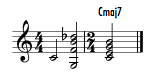
Dear Friends, When evaluating this (cmd+1) '(h (g3f4b4db5) (c4 maj7)) as snippet, I get this: Why is that c4 alone there in the beginning of snippet ? Best, Julio
-
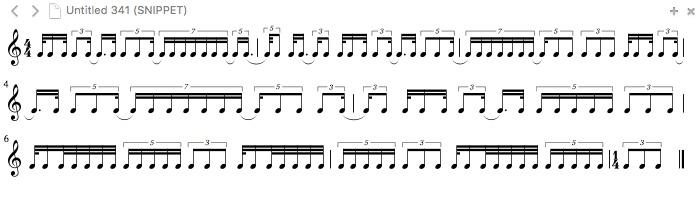
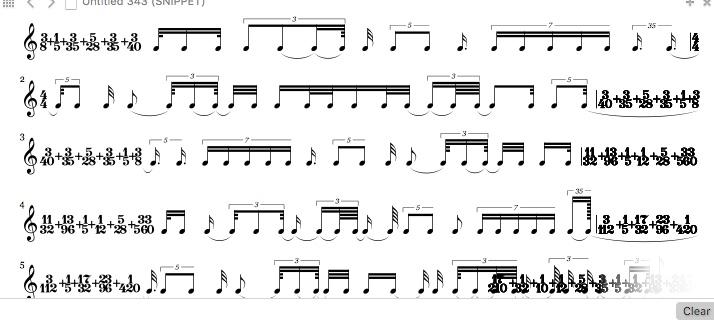
for some score-display it would be very very useful if when EVAL etc... (or use any of the OPMO-functions) OMN-notation would be displayed and not changing to RATIOS... have a look to this example: it's written like that, because then the display is very smart. when i use "rnd-pick" or other functions it changes from OMN to RATIO... very ugly then. is there an internal solution for that or another trick? thanx for help a. ;; NICE DISPLAY BY CMD3 (setf durations1 (list '(t s t) '(3q 3e_s. t) '(5h 5h 5q_7q 7q 7q 7q 7q 7q 7q_5q 5h 5h) '(t s._3e 3q) '(t s t) )) => ((t s t) (3q 3e_s. t) (5h 5h 5q_7q 7q 7q 7q 7q 7q 7q_5q 5h 5h) (t s._3e 3q) (t s t)) ;;; UGLY DISPLAY BY CMD3 because of the OPMO-fuction (gen-retrograde durations1) ;; should result the same rhythm => ((1/32 1/16 1/32) (1/32 13/96 1/12) (1/10 1/10 3/35 1/28 1/28 1/28 1/28 1/28 3/35 1/10 1/10) (1/12 13/96 1/32) (1/32 1/16 1/32)) ;;; the same (rnd-pick durations1) => (1/32 13/96 1/12) ;;; OKAY because LISP and not OPMO (nth 0 durations1) => (t s t) a practical example: ;;; WORKS => because in the last step it's on LISP-level (setf durations (list '(t s t) '(3q 3e_s. t) '(5h 5h 5q_7q 7q 7q 7q 7q 7q 7q_5q 5h 5h) '(t s._3e 3q) '(t s t) '(t t t t) '(5q 5q 5q 5q 5q) '(3q 3q 3q) '(7q 7q 7q 7q 7q 7q 7q))) (setf morph-list (flatten (gen-morph 7 '(0 1 2 3) '(4 5 6 7)))) ;;cmd3 (setf newdurations (loop for i in morph-list append (nth i durations))) ;;; DON'T WORK => because OMPO chanhig the format to RATIOS (setf durations1 (list '(t s t) '(3q 3e_s. t) '(5h 5h 5q_7q 7q 7q 7q 7q 7q 7q_5q 5h 5h) '(t s._3e 3q) '(t s t))) (setf durations2 (list '(t t t t) '(5q 5q 5q 5q 5q) '(3q 3q 3q) '(7q 7q 7q 7q 7q 7q 7q))) ;;cmd3 (setf newdurations (flatten (gen-morph 7 durations1 durations2)))
-
thanks, janusz, for this great TUTORIAL GUIDE! https://opusmodus.com/forums/tutorials/tutorial-guide/
-
Dear Friends, When working in my patches in Pure Data, one of the things I implemented back then was a function similar to Lenght-Weight. I'm searching for something like this example. 1) Take a duration sequence, for example '(s e s) used as span in OMN way, i.e., aligning the materials with the longer list of pitches. 2) Take any pitch sequence, like for example '(c4 d4 e4 f4 g4 a4 b4 a4 g4 f4 e4 d4), gen-repeat 10 times This example could result in a ascending and descending scale with the constant rhythmic pattern (s e s). I'm thinking in a function that could put some rests in this pattern, according to his own arguments. For example: The argument 1 would result in an alternation of notes and rests, like (s e s s e s s e s s e s s e) >> Before Function (s -e s -s e -s s -e s -s e -s s -e) >> After Function The sequence of arguments (2 3 5) would result in putting a rest after n notes (according to the sequence given in the argument) (s e s s e s s e s s e s s e s e s s e s s e s s e s s e) >> Before Function (s e -s s e s -s e s s e s -s e s -e s s e -s s e s s e -s, etc...) >> After Function 2 3 5 2 3 5 ) And so on. Regarding to the pitches, the function could work like "swallowing"the note corresponding to the rest in the pattern, or displacing the note to the right, keeping the pattern of up and down the scale of the example (or any other pattern). This function already exist ? Best, Julio
-
Hello, newbie question: I'd like to take an omn list and simply repeat each measure 3 times. If I start with the following code: (setf r-transitions1 '((e (e 1)(-e 3)) (-e (e 3)(-e 1)))) (setf marked (gen-markov-from-transitions r-transitions1 :size 120)) ;;conform to timesignature in omn format (setf r1 (length-span (gen-repeat 20 '8/8) marked :omn t)) ;;define the time signatures (setf timesigs (get-time-signature r1)) ;;stream of pitches (setf pitches '(c4 eb4 f4 g4 bb4 c5 eb5)) (setf pitches (chord-interval-add '(12) pitches)) ;;by spanning r1 onto pitches, pitches will repeat as needed (setf pitches (span r1 pitches)) (setf rh (make-omn :length r1 :pitch pitches)) and then try something like: (setf rrh (gen-repeat 3 rh)) ;or (setf rrh (gen-repeat '(3) rh)) neither gives me what I'm looking for. However, I notice that if I evaluate (setf rrh (gen-repeat 3 (list (first rh)))) then I get the correct result for the first measure. Therefore, doing something like this gets me what I was looking for: (setf rrh (gen-divide 8 (flatten (mapcar #'(lambda (n) (gen-repeat 3 (list n))) rh)))) But surely there's a better/simpler way to repeat bars in omn format. If anyone has insights, I'd be most appreciative. thanks, Michael
-
The functions omn and make-omn are powerful tools to construct and deconstruct scores of multiple parameters. However, beyond the parameter keywords that are well-documented (:length, :pitch, :velocity, and :articulation) it seems there are other keywords that represent important parameters of the score that should not be omitted (e.g., when we are transforming scores, and do not want to loose important characteristics). Here is an example. When the following melodic line is deconstructed, then beyond the well-documented parameter keywords it also shows the parameters :duration and :leg. If the :leg parameter would be omitted in the construction of the (possibly transformed) score, then all legato information would be stripped from the original music. (omn nil '((-3h fs4 pp leg g4 leg) (h a4) (-q cs5 mp< ord) (q c5 f stacc -) (-5h - c5 pp leg e5 < leg f5 < leg) (h gs4 pp))) (:length ((-1/6 1/6 1/6) (1/2) (-1/4 1/4) (1/4 -1/4) (-1/10 -1/10 1/10 1/10 1/10) (1/2)) :pitch ((fs4 g4) (a4) (cs5) (c5) (c5 e5 f5) (gs4)) :velocity ((pp pp) (pp) (mp<) (f) (pp < <) (pp)) :duration ((1/6 1/6) (1/2) (1/4) (1/4) (1/10 1/10 1/10) (1/2)) :articulation ((- -) (-) (ord) (stacc) (- - -) (-)) :leg ((2) (-) (-) (-) (3) (-))) Now, my questions are as follows. (1) Do there exist more than the two additional parameters :duration and :leg shown above? For example, have other special articulations their own OMN keywords? (2) Where are all these parameters documented? (3) Are these parameters stable, or will they possibly change in future? Janusz, in your process-omn function we recently discussed, you used (omn-plist :attribute <my-sequence>) instead of (omn :articulation <my-sequence>). Should omn-plist perhaps be used instead for more stable transformation functions when deconstructing scores? If so, it would be helpful to have that function also documented :) Thanks a lot! Best, Torsten
-
There are many occasions when we would like to add articulations by hand to our generated scores. The first thing we need to do is to convert (output) the score into omn format. Algorithmically generated score. (setf size 200) (setf vector (add-triangle-waves 4 size 1 0.6 :modulation (gen-triangle size 1 '(0.5 0.4 0.3 0.6) :modulation (gen-triangle size 1 0.3 :phase 180)))) (setf pitches (gen-divide 4 (vector-to-pitch '(g1 g6) vector))) (setf transpose (pitch-transpose -12 pitches)) (setf variants (pitch-variant transpose :variant '?)) (setf length (rnd-sample 120 '(s e s s))) (setf time (span pitches length)) (setf dynamics '(p mf ff)) (def-score add-triangle (:title "Waves Add-Triangle" :composer "OPMO" :copyright "© 2014 Opusmodus" :key-signature 'chromatic :time-signature (get-time-signature time) :tempo 120 :layout (piano-solo-layout 'rh 'lh :flexible-clef t)) (rh :length time :pitch pitches :velocity (rnd-sample size dynamics) :port 0 :sound 'gm :channel 1 :program 'acoustic-grand-piano) (lh :length time :pitch variants :velocity (rnd-sample size dynamics))) The expression below will convert the score into omn score format. (compile-score 'add-triangle :output :score) To get a more readable version of the score add PPRINT (print pretty) at the beginning of the expression. (pprint (compile-score 'add-triangle :output :score)) Output in the Listener: (def-score add-triangle (:title "Waves Add-Triangle" :composer "OPMO" :copyright "© 2014 Opusmodus" :key-signature 'chromatic :layout '(:brace (:flexible-treble rh) (:flexible-bass lh) :name "" :abbr "" :flexible-clef t) :time-signature '((1 4 2) (5 16 2) (1 4 1) (5 16 1) (3 8 2) (5 16 2) (3 8 1) (5 16 2) (1 4 1) (5 16 1) (1 4 1) (3 8 2) (1 4 1) (3 8 1) (5 16 1) (3 8 1) (5 16 2) (3 8 1) (7 16 1) (1 4 1) (3 8 1) (1 4 1) (5 16 1) (1 4 2) (5 16 2) (1 4 1) (5 16 1) (3 8 2) (5 16 2) (3 8 1) (5 16 2) (1 4 1) (5 16 1) (1 4 1) (3 8 2) (1 4 1) (3 8 1)) :tempo '120) (rh :omn '((s g1 ff gs1 p a1 ff b1) (s c2 mf cs2 ff d2 e2 mf) (e f2 p s fs2 ff g2 p a2) (s b2 mf e c3 s cs3 ff eb3) (s e3 mf f3 ff fs3 p a3 mf) (s bb3 ff b3 e c4 p s e4) (e e4 ff s f4 e s b4 p) (e b4 s s mf e fs5 ff) (s fs5 mf f5 p mf e cs6) (s cs6 c6 p e b5 mf s g6 ff) (s g6 p ff e f6 g6 mf) (s g6 g6 p ff e fs6) (s g6 mf p e s fs6) (s fs6 fs6 ff mf ff) (e fs6 p s ff fs6 fs6 mf) (s fs6 fs6 ff p f6) (s fs6 ff mf e e f6) (s f6 e fs6 fs6 p s f6) (s f6 mf fs6 fs6 p f6) (e f6 f6 ff s fs6 p f6 ff) (s f6 p e s s) (s f6 e mf p s ff) (s f6 mf p mf e ff) (s f6 p e s mf p) (s f6 ff e mf s e p) (e f6 s e ff mf) (s f6 p mf e6 ff f6 p) (s f6 ff e6 mf e eb6 p f6 mf) (s f6 e6 d6 f6) (s f6 e6 ff d6 e f6 p) (s f6 mf e6 ff cs6 f6 mf) (s f6 ff f6 cs6 mf f6 ff) (e f6 mf s s cs6 p fs6 mf) (s f6 ff e e6 p s bb5 mf f6) (s e6 p b5 f5 eb6) (s bb5 fs5 ff e cs5 p s a5 mf) (e e5 ff s c5 e gs4 mf s d5) (e bb4 s fs4 d4 e g4) (s e4 ff d4 b3 mf e eb4) (s cs4 p bb3 mf e gs3 p s c4 ff) (s a3 a3 mf e b3 ff gs3) (s bb3 c4 d4 e b3 mf) (s cs4 p eb4 mf e f4 p s eb4 ff) (s e4 fs4 gs4 p fs4 ff) (e g4 p s a4 mf bb4 a4) (s bb4 c5 cs5 p c5 mf) (s cs5 eb5 ff e e5 mf eb5 ff) (s e5 mf e fs5 g5 p s fs5 ff) (s g5 mf gs5 a5 p a5) (e bb5 ff b5 mf s c6 ff c6)) :channel 1 :sound 'gm :program 'acoustic-grand-piano :volume 90 :pan 64) (lh :omn '((s b0 p a0 mf gs1 g1) (s e1 d1 cs1 ff c1) (e a1 mf s g1 p fs1 mf f1) (s eb2 ff e cs2 s c2 mf b1 p) (s e2 mf eb2 d2 b1 p) (s e3 mf c3 p e b2 ff s bb2) (e b3 p s f3 mf e s e3 ff) (e b3 p s s ff e e3 mf) (s cs5 ff a5 p a5 e gs5 mf) (s cs5 ff c5 e b4 mf s g5 ff) (s g5 mf a5 ff e g5 p g5) (s g5 g5 mf g5 e fs5 ff) (s g5 p g5 e ff s gs5 mf) (s fs5 fs5 ff mf fs5) (e fs5 s p mf fs5) (s fs5 p ff p f5 mf) (s f5 p fs5 mf e e) (s f5 p e e5 e5 ff s f5) (s f5 p e5 e5 f5) (e f5 ff fs5 p s f5 ff f5) (s f5 e s p f5) (s f5 ff e e p s ff) (s f5 mf f5 f5 e p) (s f5 e ff s mf ff) (s f5 mf e p s e mf) (e f5 s e p f5) (s e5 f5 mf p f5) (s f5 g5 ff e fs5 p f5 ff) (s f5 fs5 mf gs5 f5 ff) (s f5 d5 e5 e f5 mf) (s cs5 e5 f5 f5 p) (s f5 ff mf p cs5) (e cs5 ff s f5 mf p fs5 mf) (s f5 e fs5 s c6 f5) (s e5 b4 p f4 eb5 mf) (s bb4 p a4 mf e fs4 p s cs4 ff) (e e4 mf s gs4 p e c5 mf s fs4 ff) (e bb3 s fs3 d3 e g3 mf) (s e3 p d3 b2 e eb3 ff) (s c3 mf e3 p e d3 ff s b2 mf) (s b2 ff a2 p e e gs2) (s b2 ff gs2 mf bb2 ff e c3 p) (s cs3 b2 mf e a2 ff s b2 p) (s fs3 e3 mf fs3 p gs3) (e g3 ff s f3 e3 p f3 ff) (s c4 mf cs4 c4 bb3) (s cs4 p eb4 mf e e4 eb4) (s fs4 p e g4 mf fs4 s e4) (s g4 gs4 p a4 a4) (e c5 ff mf s cs5 ff d5 p)) :channel 1 :sound 'gm :program 'acoustic-grand-piano :volume 90 :pan 64)) Copy the score from the Listener and paste it into the Composer panel. Now we are ready to add articulations etc... to the score by hand.
-
Hi, is it possible to use Klangfarbenmelodie with OMN ? It could be like that: pitch 1, midi channel 1 pitch 2, midi channel 2... Is there any easy way to do it, or maybe a function I haven't see yet ? Thanks Alain
-
 It is highly useful to have functions that support the full OMN language, because they allow us transform rich music snippets with all parameters. On the other hand, it is easier to define functions for individual parameters. So, why not having a function that automatically adds OMN support (including nested lists) for a function transforming only a single parameter. Here is an example. Lets assume you want to roll your custom pitch transposition function. I choose this example, because everyone hopefully understands that very easily, and can then use this overall approach for their user functions. This demonstration function expects a list of pitch symbols and a numeric transposition interval -- it returns the transposed pitches. Here is the definition of this auxiliary function and a test. (defun my-transposition-aux (interval pitches) (midi-to-pitch (loop for p in (pitch-to-midi pitches) collect (+ p interval)))) ; test (my-transposition-aux 7 '(c4 e4 g4)) ; => (g4 b4 d5) Now, lets generalise this function to support arbitrary OMN input, including nested lists. Some background info for less experienced Lisp programmers: we need to give the new function edit-omn (defined below) as an argument another computer program -- another function. This function does not even have its own name, because it is not a big deal -- it is therefore a lambda expression (an anonymous function, for more on this see http://www.gigamonkeys.com/book/functions.html). (defun my-transposition (interval omn) (edit-omn :pitch omn #'(lambda (ps) (my-transposition-aux interval ps)))) ; my-transposition now "magically" supports arbitrary OMN expressions including nested lists and rests (my-transposition 7 '((q c4 mp -q q e4 q f4) (h g4 tr2))) ; => ((q g4 mp - b4 c5) (h d5 mp tr2)) Below this message is the definition of edit-omn. As you can see, it is not a big deal either (the doc string is much longer than the definition), but hopefully useful. Best, Torsten (defun edit-omn (type notation fun &key (flat T)) "Use function `fun', defined for transforming individual OMN parameters of `type' (e.g., :length, or :velocity) to transform omn expression `notation'. This function is intended as a convenient way to generalise functions your functions to support omn notation as input. Args type: a keyword like :length, :pitch, :velocity, :duration, or :articulation (any keyword supported by function omn or make-omn). fun: a function expecting a parameter sequence of given type. It is sufficient to support only a flat input list, support for nested lists is added implicitly. notation: a omn sequence (can be nested). flat (default T): whether or not `fun' expects a flat input list. Example: roll your own transposition supporting omn input ; first aux def supporting only pitches (defun my-transposition-aux (interval pitches) (midi-to-pitch (loop for p in (pitch-to-midi pitches) collect (+ p interval)))) ; test (my-transposition-aux 7 '(c4 e4 g4)) ; => (g4 b4 d5) ; variant supporting also omn expressions (defun my-transposition (interval omn) (edit-omn :pitch omn #'(lambda (ps) (my-transposition-aux interval ps)))) ; test with nested OMN including a rest (my-transposition 7 '((q c4 mp -q q e4 q f4) (h g4 tr2))) ; => ((q g4 mp - b4 c5) (h d5 mp tr2)) " (let ((params (omn nil notation))) (apply #'make-omn (append (list type (span notation (funcall fun (if flat (flatten (getf params type)) (getf params type))))) (remove-property type params))))) ;; Auxiliary definition (defun remove-property (property property-list) "Removes a property and its value out of a property list" (let ((pos (position property property-list))) (if pos (append (subseq property-list 0 pos) (subseq property-list (+ pos 2))) property-list))) ; (remove-property :test '(:a 1 :test 2 :x 3)) ; => (:A 1 :X 3)
 -
Hi, Here is a short example of OMN deconstruction/reconstruction technique useful when you want to do functions for working directly with omn. ;; Example of function application based on binary-list. (flatten (do-section '(0 1 0) '(chord-interval-add '(4) x) (mclist '(c4 d4 e4)))) ;;; Function example to search for '1/4 length and process the corresponding ;;; pitch for add Major 3rd interval when '1/4 is found. ;;; It is also a good example of deconstruction/reconstruction of OMN ;;; inside a function (defun add-3rd-quarter (omn) (let ((plist (disassemble-omn omn))) (setf (getf plist :pitch) (flatten (do-section (binary-invert (gen-binary-remove '1/4 (getf plist :length))) '(chord-interval-add '(4) x) (mclist (getf plist :pitch))))) (apply 'make-omn plist))) (add-3rd-quarter '(e c4 p d4 q e4 f stacc e f4 p a4 q g4 f stacc)) => (e c4 p d4 q e4gs4 f stacc e f4 p a4 q g4b4 f stacc) SB.
-
Below is a function that might be interesting for others as well. When I starting writing this function it was much more complicated, but it got more simple by and by A formatted version as an RTF file of the documentation is attached, below is a plain text version. For completeness I also attached the documentation of the function circle-repeat, used by the function below. Unfortunately, the file names are destroyed by the software of this forum, sorry. Best, Torsten alternate-omns ids omns Arguments and Values ids a list of integers, indicating the position of OMN expressions in omns. omns a list of OMN expressions (can also be plain lengths, or pitches etc.) between which to switch. Description This function alternates between sublists of multiple OMN expressions. This function can be useful, e.g., to switch between different musical characteristics. Each characteristic (e.g., gesture) and its development can be specified by a combination of parameters (rhythm, pitches, dynamics, and playing techniques) in a sequence of OMN expressions. The output of the function switches between these characteristics as specified in the first argument to the function. The following example demonstrates this. (alternate-omns (gen-eval 10 '(rnd-pick '(0 1))) (list (make-omn :length (length-rest-series (rnd-sample 7 '(7 8 9)) (length-divide 3 2 (rnd-sample 7 '((q q q) (h e e) (h.) (h q))))) :pitch '(d4 e4 f4 g4) :velocity '(pp)) (make-omn :length '(s s s s) :pitch (gen-rotate :right '(c5 d5 f5 a5 g5 e5) :type :seq) :velocity '(ff) :span :pitch))) Alternatively, one can switch between plain sequences of OMN lengths, or pitches etc. (alternate-omns '(0 0 1 0 1 0 1 1 0 0 1 1 1) (list (gen-rotate :left '(-1/20 1/20 1/20 1/20 1/20) :type :seq) '((q e e)))) Examples Remember that resulting OMN expressions can be “re-barred”. (omn-to-time-signature (alternate-omns '(0 0 1 0 1 0 1 1 0 0 1 1 1) (list (make-omn :length (gen-rotate :left '(-1/20 1/20 1/20 1/20 1/20) :type :seq) :pitch '(d4 e4 f4 g4) :velocity '(ff)) (make-omn :length '(q e e) :pitch (gen-rotate :left '(c5 e5 f5) :type :seq) :velocity '(pp pp) :attribute '(ten stacc stacc) :span :pitch))) '(4 4)) Implementation (defun alternate-omns (ids omns) "This function alternates between sublists of multiple omn expressions. It can be useful, e.g., to switch between different musical characteristics. Args: ids: a list of integers, indicating the position of OMN expressions in omns. omns: a list of OMN expressions (can also be plain lengths, or pitches etc.) between which to switch." (let ((omn-no (length omns))) (assert (every #'(lambda (x) (and (integerp x) (< x omn-no))) ids) (ids) "alternate-omns: must be a list of integers between 0 and (1- (length omns)): ~A" ids) (let ((hash (make-hash-table))) (loop for i from 0 to (1- omn-no) for my-omn in omns ;; span (circular repeat if necessary) omn sublists to number of occurences in specs ;; and fill hash table with that as side effect do (setf (gethash i hash) (circle-repeat my-omn (count i ids)))) (alternate-omns-aux ids hash)))) (defun alternate-omns-aux (ids hash) (loop for id in ids collect (pop (gethash id hash)))) (defun circle-repeat (pattern n) "Circle through elements in pattern (a list) until n elements are collected. NOTE: only supports flat list so far." (let ((l (length pattern))) (loop for i from 0 to (- n 1) collect (nth (mod i l) pattern)))) TXT.rtf TXT.rtf
-
;;;function which replaces/rewrites the component in OMN-seq (defun omn-component-replace (omn-sequence replace-component) (make-omn :length (if (lengthp (car replace-component)) (append replace-component) (omn :length omn-sequence)) :pitch (if (pitchp (car replace-component)) (append replace-component) (omn :pitch omn-sequence)) :velocity (if (velocityp (car replace-component)) (append replace-component) (omn :velocity omn-sequence)) :articulation (if (articulationp (car replace-component)) (append replace-component) (omn :articulation omn-sequence)))) (setf seq1 '(s gs3 ppp tasto q.t cs4 pppp tasto s f4 ppp tasto)) (omn-component-replace seq1 '(5/16 7/16 3/32))
-
is there a function to ROTATE a complete omn-sequence? (like a sample) .... thanks for help!
-
;; little function. don't know if something like this already exits ;; in OMN: i wanted to READ the swallowed pitches after ambitus-swallow ;; i hope it works fine... ;;function (defun read-ambitus-swallowed (min/max omn-sequence) (let ((up (ambitus-swallow (list (second min/max) 'g9) omn-sequence)) (down (ambitus-swallow (list 'c0 (first min/max)) omn-sequence))) (merge-voices up down))) ;;nonsense-sequence (setq omn-sequence '(e f4 t a0 q g0 d9 s. eb6 t. f3 cs9 t ab0 q c0)) ;;ord ambitus-swallow (ambitus-swallow '(a0 g8) omn-sequence) ;;the excluded pitches (read-ambitus-swallowed '(a0 g8) omn-sequence)
-
in OMN: is there a possibilty to replace - for example all 1/32-values of an OMN-sequence - into acciaccaturas? thanxs for help andré
-
Hello, I have converted one of my scores to OMN. The sequence of pitches, velocity and length are all demonstrated explicitly example - (q b3 e -s b2b2 gs2 as2 a3 g2g2 g2 e2 -e) I would like to take the sequence and convert it to the most appropriate function. I'm assuming this would take a step of analysis. That is, instead of Function > Sequence, I want to perform Sequence> Analysis > map to a Function. Then I could eliminate the explicit OMN sequences and have a score that is (mostly) functions. I'm not sure if this is possible, as it seems incredibly difficult to perform without manual data transformation. However, I'm curious if anyone else has attempted this sort of process? Regards, Tom
-
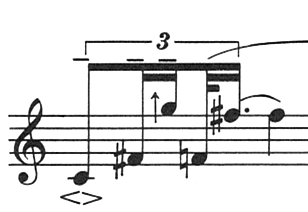
Hi! I have a small tuplet question: best way to notate this kind of structure in OMN?
-
Here is a small project to explore pitch-mapping. There are some results but not the best ones yet. If anyone has an idea on how to improve this I would really appreciate the advice. What would be ideal as the result would be the same musical list (and notation) but with the transformed pitches. As you can see from the result, there are many changes and the result is not clean but rather seriously garbled instead! The goal is to remap the pitch content of the original with a new tonality-map. Here is the beginning attempt. A confusing element is the return of NIL when parsing :articulation from the original material. ;;; Pitch mapping project idea ;;; Original musical sequence: (setf alto-flute-orig '( (-q e b4 -e (-app e eb4 f4) h. eb4 (-acc e f4 eb4 f4)) (-3q 3q b4 -3q (-app e eb4 f4) q eb4 (-acc e f4) h eb4 (-acc e f4 a4 b4)) (-q e f5 -e (-app e b4 ds5) a4 (-app e. g4) a4 t b4 a4 b4 -e (-app e eb5) e f5) ((acc e b4 d5 ds5) q. c5 (acc s f5) e. b4 (acc e c5 d5 ds5) e. a4 (acc e b4 a4) e b4) (-q e b4 (app e f4 a4 f4) e b4 t g4 a4 eb4 a4 q. b4 (-acc e f4 a4) h bb4 t bb4 c5) (-e. b4 -e (acc a4 b4) h bb4 (app e c5) q b4 (acc e d5 ds5 e5) q. b4 (app e f4 bb4) s c5) (-e gs5 3s a4 d4 gs4 -e. bb4 tie q bb4 (3e b4 a4 b4 -e -e)) ((acc e a4 b4 fs4) h c5 (acc e b4) q c5 (acc e ds5 e5 fs5) 3e b4 c5 fs4 q a4 tie q a4 tie e. a4 s bb4 a4 e b4) (-e (acc e eb4) h f4 tie e. f4 s gb5 -e (acc eb5 f5) e e5 tie q e5 tie 3q e5 3q e5 3q f5 3q b4 -3q -3q) ((acc e bb4 b4) a4 (acc e bb4) h a4 (acc e bb4) e a4 s gs5 -s) ) ) ;;; ;;; Disassemble OMN: There are some errors here - in particular for :articulation which seems to return NIL (disassemble-omn alto-flute-orig) (setf pit (omn :pitch alto-flute-orig)) (setf len (omn :length alto-flute-orig)) ;;; next line result is confusing - returns nil (setf art (omn :articluation alto-flute-orig)) ;;; next line returns a result (setf artr (omn :rest-articulation alto-flute-orig)) ;;; Create 12-tone mapping and pitch transformation of original (setf map '(0 1 3 4 7 8 10 11 17 18 21)) (setf mapping (integer-to-pitch map)) (create-tonality 12T2 '(0 1 3 4 7 8 10 11 17 18 21)) (setf output (tonality-map '(12T2 :root c3 :fixed t) pit)) ;;; Assemble the parameters into a new OMN with transformed pitches (make-omn :length len :pitch output :articulation art :rest-articulation artr ) ;;; The result is unsuable so far. There are some things to iron-out here! :-)
- 5 replies
-
- 1
-

-
- omn
- disassemble-omn
- (and 2 more)
-
i would like to re-organize the notation of a sequence like '(5/32 1/32 1/4 1/32 5/32 1/4 3/32 1/32 5/32 1/16 1/16). is it possible to modifiy it, so that all this will be notated in "groups of quarter notes"? like this... much easyer to handle it in SIBELIUS etc... thanks for help... andré


-
Good morning. I'm interested in score analysis and I've encountered an issue. Is it possibile in Opusmodus, after I've create a score in OMN form (for example : (h c6 mp) (w. f5 pp) (d a4 mp) ) sort these sublist in PITCH ascending order linking the corresponding value of LENGTH? example: convert this: (h c6 mp) (w. f5 pp) (d a4 mp) in this: (d a4 mp) (w. f5 pp) (h c6 mp) where every sublist remains the same but the order is changed on a pitch base (in this case ascending). I've tried SORT-ASC and similar, but probably there's something to try and I'm new to the program. Thank you a lot! Pietro
-
Hi, I noticed this behavior using length-adjust: (length-adjust '3/4 '(-s = = =) :type 'r :position 's) => (-h -s nil nil nil) This works though: (length-adjust '3/4 '(s = = =) :type 'r :position 's) => (-1/2 1/16 1/16 1/16 1/16) and this: (length-adjust '3/4 '(-s s s s) :type 'r :position 's) => (-1/2 -1/16 1/16 1/16 1/16) Seems as if the -s in combination with = causes the problem. I'm still on OM 1.0, maybe this behaves differently in 1.1. All the best, Erik